
How to Journal Trades Effectively (Even on No-Trade Days)
Why You Should Journal Every Day
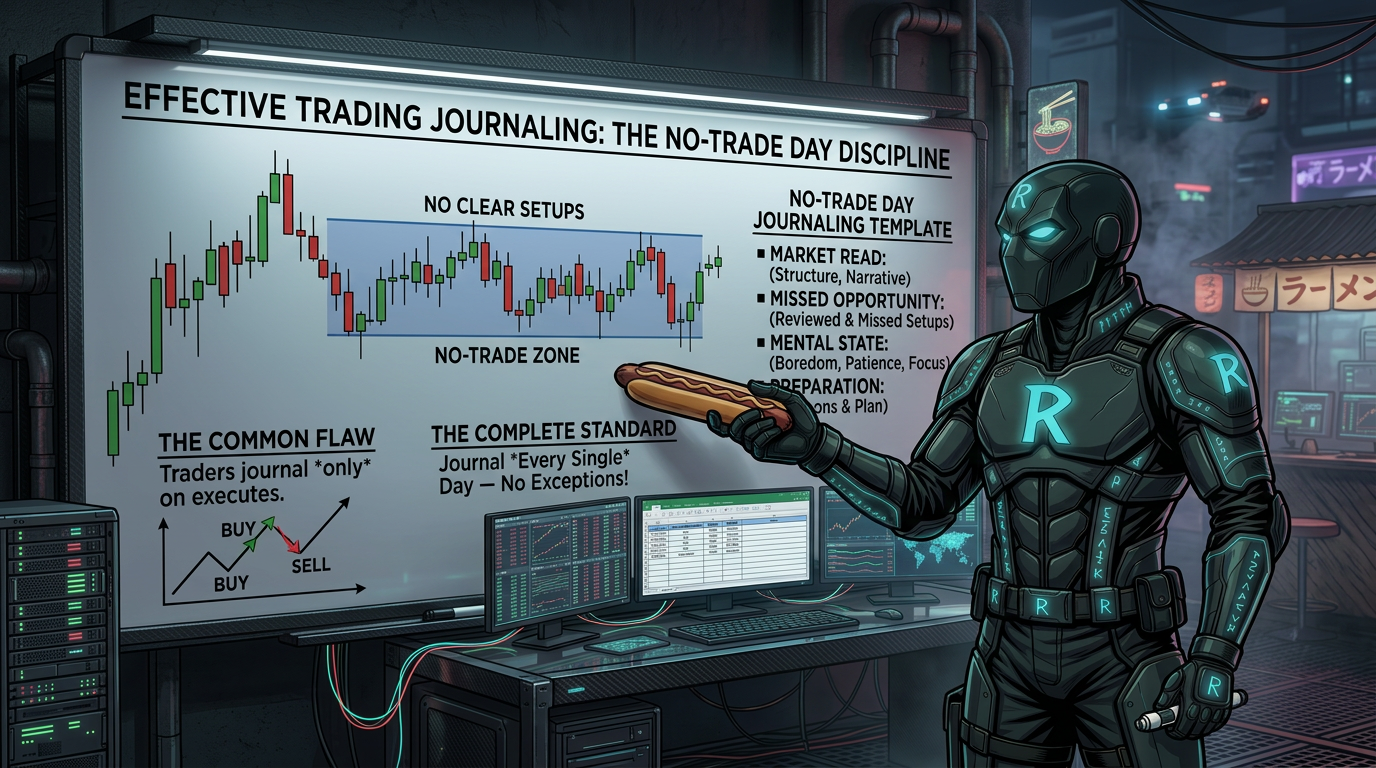
Journaling only when you trade leaves huge gaps in your learning. The days you do not trade still have price action worth studying. If you skip those days, you miss patterns, miss mistakes, and slow down your growth. Journaling daily — with predictions made the night before and actuals filled in after — forces you to check whether your bias was right or wrong. Over time, this builds a sharp eye for price action.
Setting Up Your Notion Journal
Open a blank page in Notion and title it something like 'Trades Market Review.' Use the backslash command, type 'table,' and choose 'Table View.' Create a new database and call it 'Journal.' Add a Date property. Then click the view option and add a Calendar View. Now you can see your journal by day and flip back to any past entry easily.
Building Your Daily Journal Template
Inside Notion, create a new template and name it 'Journal Entry.' Add a callout block at the top for news from ForexFactory. Add a second callout for general notes. Then use toggle headings — one for each instrument you trade, like ES and NQ. Inside each toggle, use a two-column layout: one column labeled 'Predictions' and one labeled 'Actual.' Below that, add a four-column row with your key timeframes: Daily, 1H, 15M, and 5M. Paste your TradingView chart screenshots into each section. If you trade a third asset, duplicate an existing toggle and relabel it.
How to Fill Out the Daily Entry
Start your journal entry the night before. Look at the daily chart and write your prediction for the next day's price action. The next day, after the session, go back and fill in the 'Actual' column with a screenshot from TradingView. Mark up key areas: SMTs (divergences between correlated instruments), order blocks, fair value gaps, and propulsion blocks. Do this for each timeframe — Daily, 1H, 15M, and 5M. Focus your lower timeframe analysis on your trading session window. For example, if you trade 8:30 AM to 12:00 PM, mark up that window in detail.
Adding News to Your Journal
Before your session, go to ForexFactory.com and copy the economic news events for the day. Paste them into the callout block at the top of your journal entry. This gives you context for why price may move sharply at certain times. Over time, you will start to see how news events line up with key technical levels.
Building Your Weekly Review Template
Create a second template in Notion called 'Weekly Review.' Add a callout for the weekly ForexFactory news. Use toggle headings for each instrument. Inside each toggle, use a two-column layout: Predictions and Actual. Below that, use a three-column layout for your weekly timeframes: Daily, 4H, and 1H. Mark up the weekly profile — separate each day at midnight so you can see how the week unfolded day by day. Add the weekly opening price to spot fair value for the whole week.
Reviewing Your Charts on TradingView
When you mark up your charts, look for the same things across timeframes. On the daily and 4H, look at the bigger picture bias — is price making higher highs or lower lows? On the 1H, look for SMTs between ES and NQ to spot divergences. On the 15M, look for order blocks, changes in the state of delivery, and how price behaved around the daily open. On the 5M, zoom into your session window and mark where price formed setups — like reaching into a fair value gap, displacing through an order block, or creating a propulsion block. Use Control+Shift+S to copy your chart to clipboard, then paste it directly into Notion.
Making the Habit Stick
The trader in this guide skips Mondays because he never trades Mondays. That is fine — journal the days that matter to you. The key is consistency. Fill in your predictions the night before. Fill in your actuals after the session closes. Over weeks and months, you will build a searchable record of how price behaved, what your bias was, and whether you were right. That record becomes one of your most valuable trading tools.
Frequently Asked Questions
Do I have to journal even on days I don't take a trade?
Yes. Price action still happens on no-trade days. Journaling those days helps you learn what setups look like, even when conditions are not right to enter. Skipping them slows down your growth.
What is the difference between the Predictions and Actual columns?
You fill in Predictions the night before — what you expect price to do the next day. You fill in Actual after the session ends — what price actually did. Comparing the two helps you figure out if your bias is on track or needs work.
What timeframes should I journal?
This guide uses Daily, 1H, 15M, and 5M for daily entries and Daily, 4H, and 1H for the weekly review. Use the timeframes that match your own trading style and session.
Does this only work for ES and NQ futures?
No. The template is built for ES and NQ but you can duplicate any section and rename it for any market you trade — forex pairs, crypto, or other futures.
Why should I add news from ForexFactory to my journal?
Economic news can cause sharp price moves. Logging it alongside your charts helps you see how news events interact with key technical levels over time.
How do I get my TradingView charts into Notion quickly?
Press Control+Shift+S on TradingView to copy the chart image to your clipboard. Then paste it directly into Notion. You do not need to save any files.
When should I fill in the weekly review?
Fill in your weekly prediction at the start of the week — before Monday or Sunday night. Fill in the actual at the end of the week once the weekly candle has closed.
Can I download a pre-made version of this Notion template?
Yes. The creator mentions dropping a link to the completed template in the video description. Check the YouTube video description for the latest link.